Proxy Manager Guide
1. What is Proxy Manager
Proxy Manager provides unified management of proxy inbound entries and outbound traffic. It integrates proxy pool management, fingerprint management, routing rule management, proxy data analysis, request logs, monitoring, and billing.
You ultimately use a created Router URL in your browser, scripts, data scraping, or business systems. After the Router receives a request, it forwards traffic to the corresponding Proxy Pool based on the configured proxy pools and routing rules. You can flexibly configure traffic distribution strategies for different scenarios to ensure high availability and security while keeping things observable and controllable.
Core Concepts
- Router: The proxy entry point that receives requests and forwards traffic.
- Proxy Pool: An outbound proxy pool that manages a group of proxy URLs.
- Fingerprint Pool: A TLS fingerprint pool that applies fingerprint configurations to outbound traffic.
- Router Rule: Routing rules that switch proxy pools, fingerprints, or WAF behavior based on conditions.
- Logs: Request logs used to troubleshoot requests, latency, status codes, and target site issues.
- Monitoring: Monitoring rules used to detect the health of a Router or Proxy Pool.
- Pricing: Billing and account limits.
First-Time Setup Flow
- Go to Proxy Manager > Quick Start.
- Configure the Router name, password, and TLS.
- Create or select a Proxy Pool.
- Optionally configure a Fingerprint Pool.
- Optionally configure Routing Rules.
- Click Create Router.
- Copy the Router URL from Router Management.
- Configure the Router URL in your business tools.
- View request results in Router Detail > Logs / Analysis.
- To ensure stability and availability, create monitoring rules in Monitoring.
2. Quick Start
Entry: Proxy Manager > Quick Start
Quick Start is the fast creation entry. In a single flow you can create the Router basic configuration, proxy pool configuration, TLS fingerprint pool, and routing rules all at once.
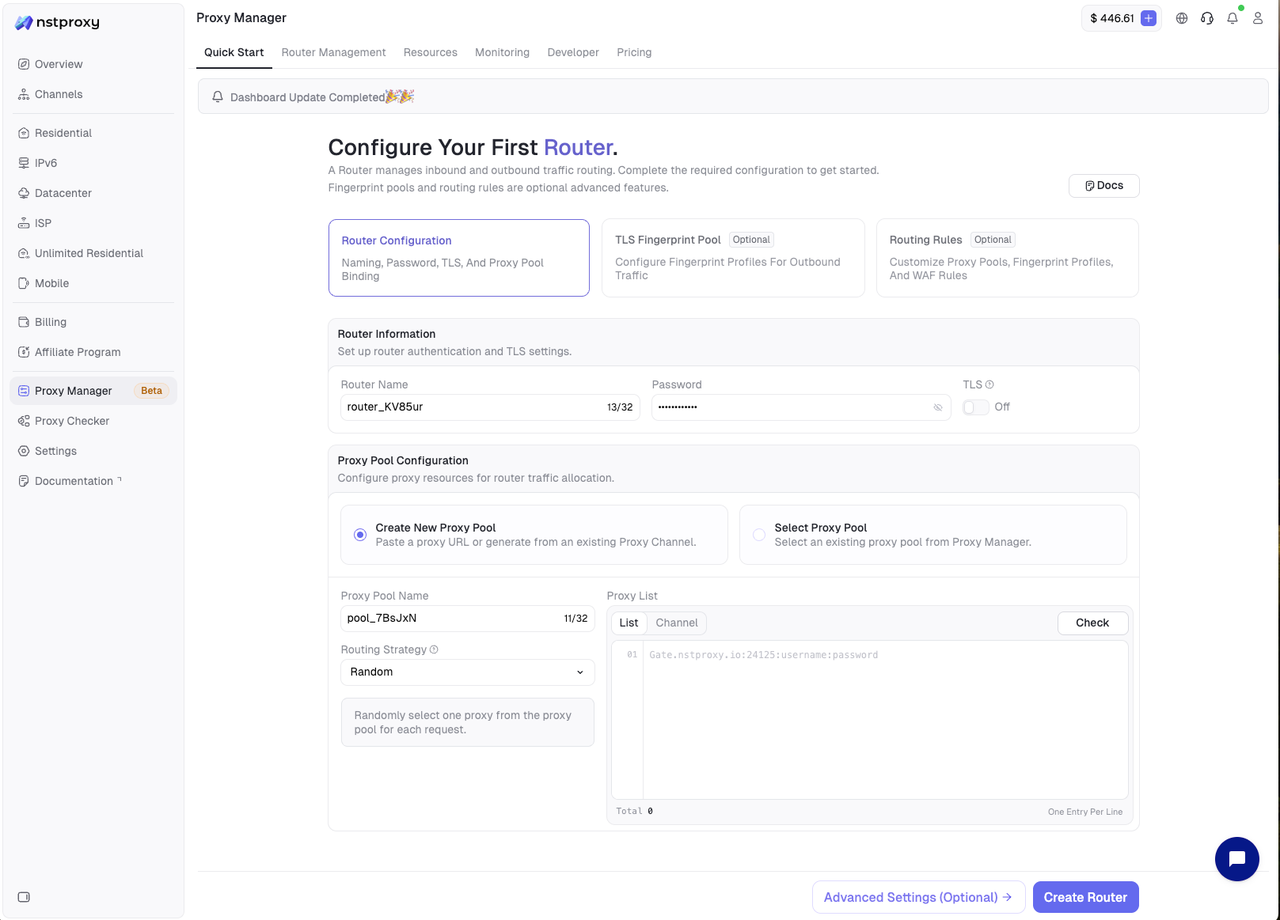
Router Configuration
Used to configure the Router's basic authentication and TLS behavior.
Fields:
- Router Name: Required. The Router name is auto-generated and can be modified manually.
- Password: Required. The Router access password is auto-generated and will appear in the Router URL.
- TLS: Optional. Controls whether TLS encryption and certificate verification are enabled.
TLS options:
- Off: TLS is not enabled; connects to the server over HTTP. Suitable for basic proxy forwarding.
- Full: TLS is enabled. Unlocks advanced capabilities such as full logs, TLS fingerprints, WAF, and monitoring rules.
Recommendations:
- For basic proxying only, you can keep TLS Off.
- If you need a Fingerprint Pool, WAF Rule, or full request logs, enable TLS.
- Before enabling TLS, download the CA from the Developer page and read the TLS documentation.
Proxy Pool Configuration
Used to configure the default outbound proxy pool for the Router.
Options:
- Create New Proxy Pool: Create a new proxy pool and bind it to the Router in the current flow.
- Select Proxy Pool: Select an existing proxy pool as the default pool for Router requests.
When creating a new proxy pool, configure:
- Proxy Pool Name: The proxy pool name.
- Routing Strategy: How multiple proxies in the pool are scheduled.
- Proxy List: A list of proxy URLs, one per line.
- List / Channel: List means pasting proxies directly; Channel means generating from an existing proxy channel.
- Check: Test proxy availability.
Routing Strategy:
- Random: Randomly selects a proxy for each request. Suitable for general scenarios.
- Round: Uses proxies in round-robin order. Suitable when you want traffic evenly distributed.
- Limit: Uses proxies according to a limit policy. Suitable when you want to control proxy usage or concurrency.
Proxy List example:
gate.nstproxy.io:24125:username:password
http://username:password@host:port
socks5://username:password@host:port
TLS Fingerprint Pool
After clicking Advanced Settings (Optional), you can configure the TLS Fingerprint Pool.
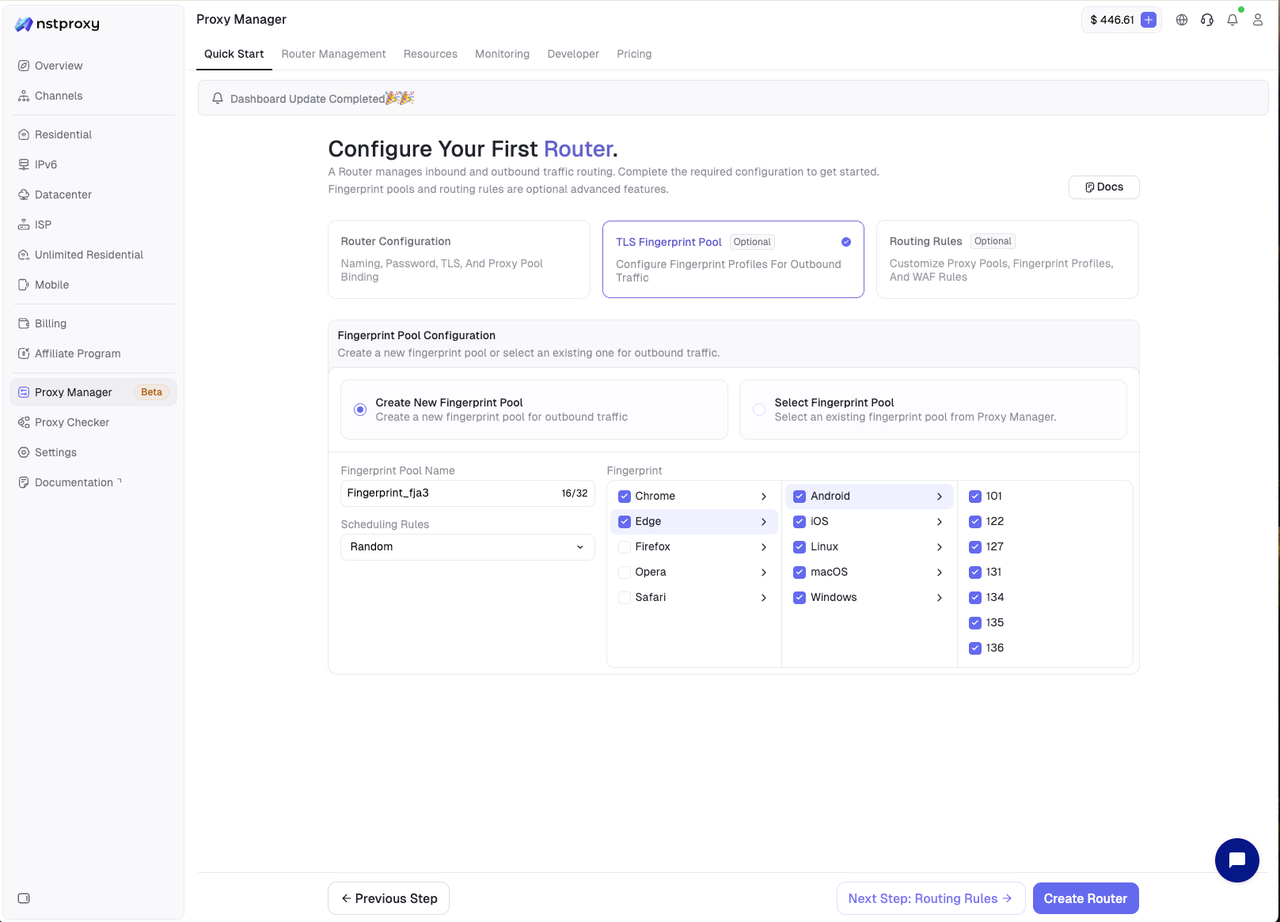
Options:
- Create New Fingerprint Pool: Create a new fingerprint pool and bind it to the current Router.
- Select Fingerprint Pool: Select an existing fingerprint pool.
Fields:
- Fingerprint Pool Name: The fingerprint pool name.
- Scheduling Rules: Fingerprint scheduling rules, e.g. Random.
- Fingerprint: The list of fingerprint configurations.
Recommendations:
- You can skip this step for basic proxy forwarding.
- Configure a Fingerprint Pool when the target site is sensitive to TLS fingerprints.
- A Fingerprint Pool usually needs TLS enabled to work.
Routing Rules
Routing Rules are used to pre-configure advanced traffic handling rules when creating a Router.
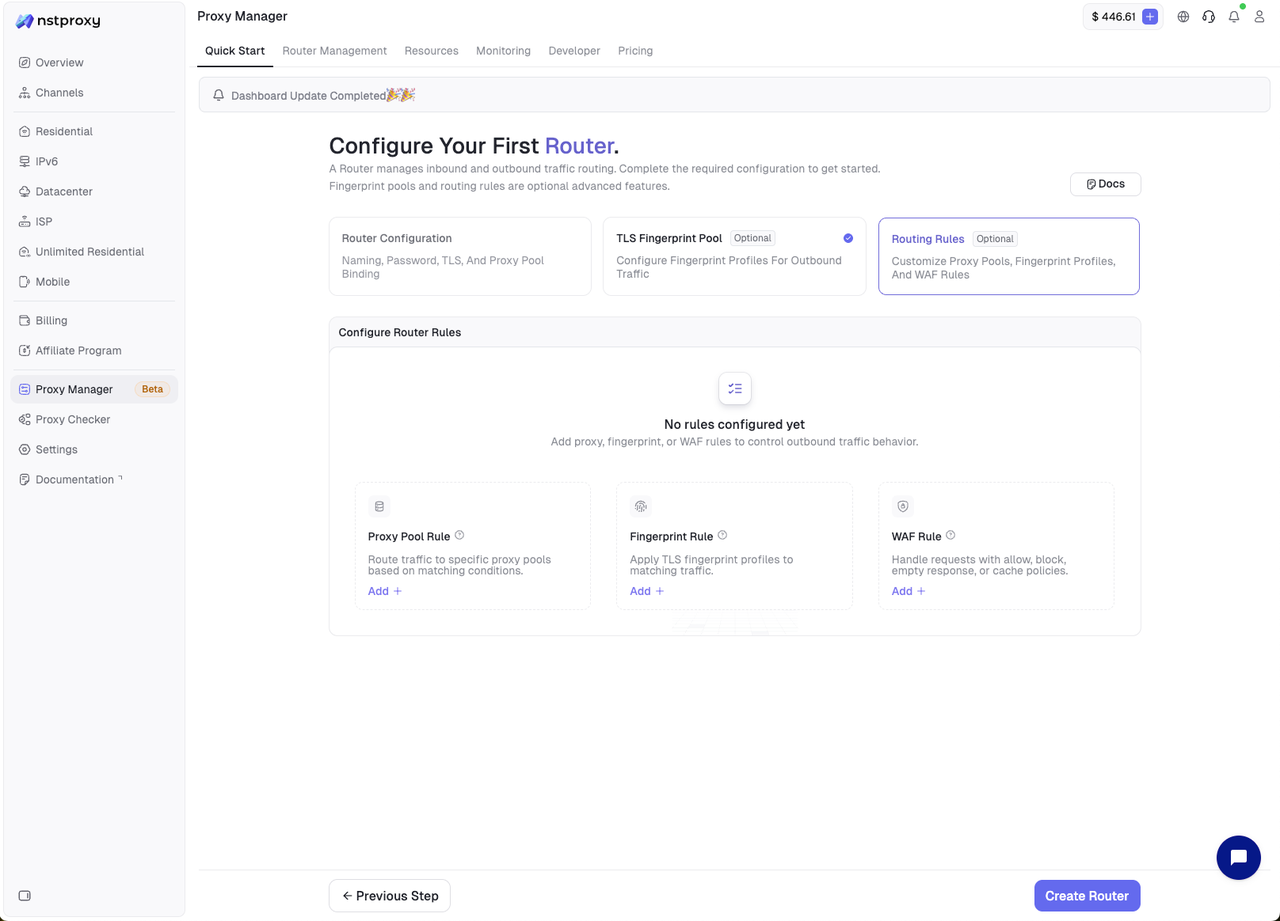
You can add three types of rules:
- Proxy Pool Rule: Switch to a specified Proxy Pool when the condition matches.
- Fingerprint Rule: Apply a specified Fingerprint Pool when the condition matches.
- WAF Rule: Execute strategies such as allow, block, empty response, or cache when the condition matches.
Rule structure:
- Rule Name: The rule name.
- If: The match field, e.g. ClientIP, Domain, Path, Method.
- Operator: The match relationship, e.g. equals, contains.
- Input Value: The match value.
- Action: The action executed when the condition matches.
- Status: Whether the rule is enabled.
When done, click Create Router. The system creates the Router and generates a Router URL.
3. Router Management
Entry: Proxy Manager > Router Management
This page is used to view and manage all Routers.
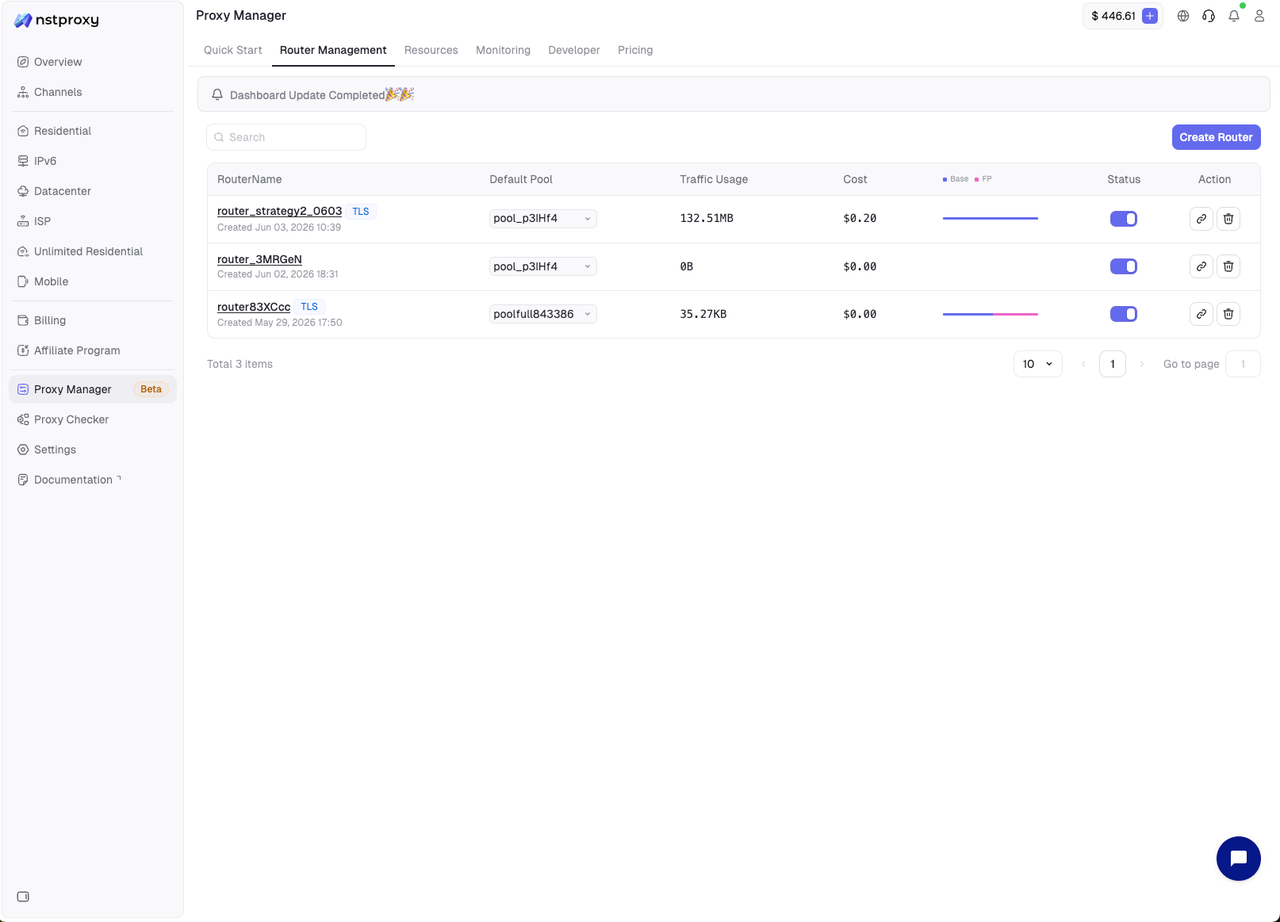
Fields:
- Router Name: The Router name; click to open the detail page.
- Default Pool: The Proxy Pool currently used by default; adjustable via the dropdown.
- Traffic Usage: Traffic consumed by the Router.
- Cost: Cost incurred by the Router.
- Base / Fingerprint: The split of base traffic, fingerprint traffic, and cost.
- Status: The Router enabled status.
- Operation: Copy URL, delete.
Common operations:
- Search Router: Enter the Router name in the search box.
- Switch default pool: Select a new Proxy Pool in the Default Pool dropdown.
- Enable or disable: Toggle the Status switch.
- Copy Router URL: Click the link icon to copy the proxy address into your business tools.
- Delete Router: Click the delete icon. Confirm no business is using it before deleting.
Standard creation entry:
- Click Create Router to quickly create a Router.
- Suitable when you already have an available Proxy Pool and just need a new proxy entry.
Create Router fields:
- Router Name: The Router name.
- Password: The Router access password.
- Default Pool: The default proxy pool.
- TLS: TLS mode, either Full or Off.
- Status: Whether to enable after creation.
- Description: Optional description.
4. Router Detail
Click a Router name to open the detail page to view and configure a single Router. The detail page contains four tabs: Overview, Router Rule, Logs, and Analysis.
Overview
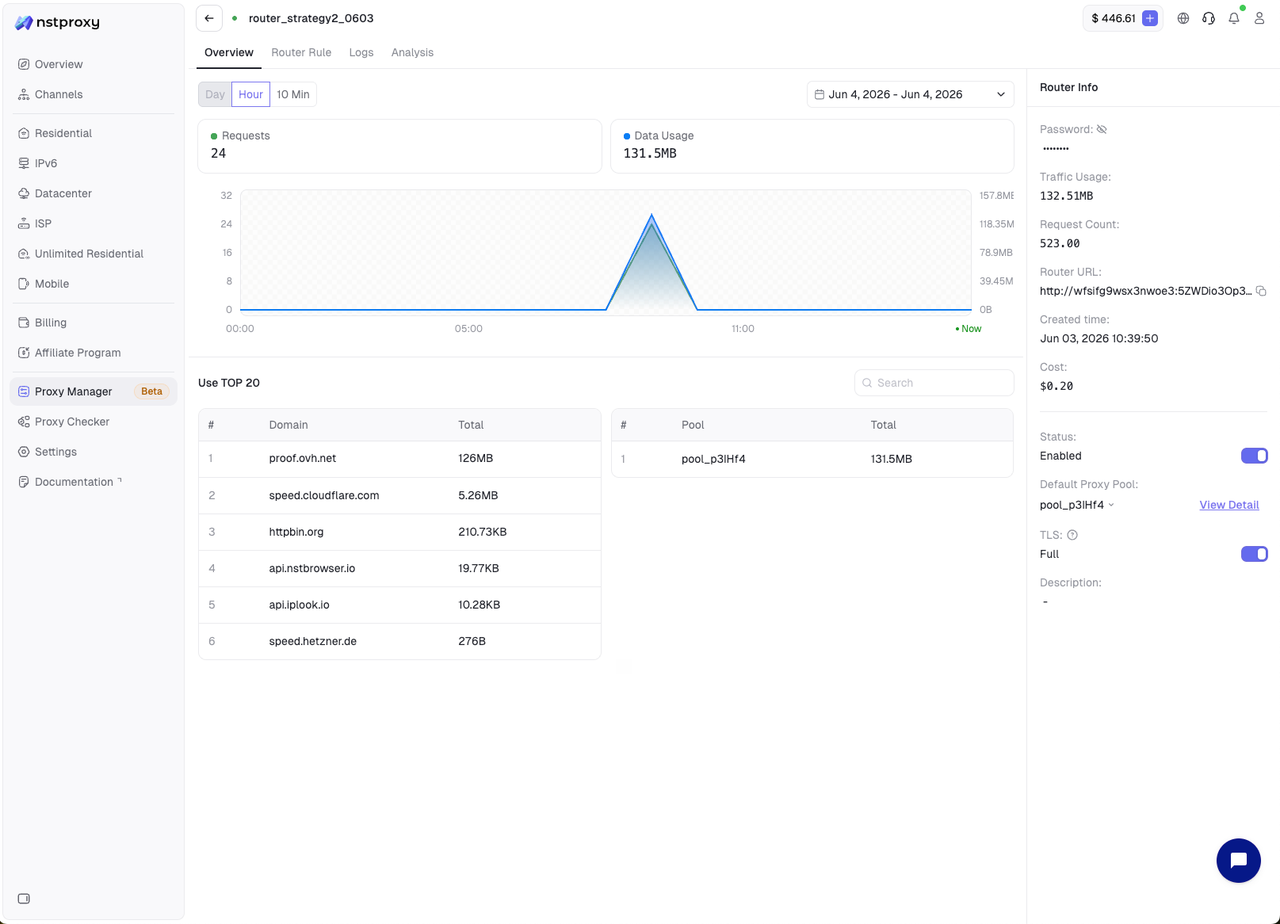
Overview shows the overall operating status of the Router.
What you can view:
- Requests: Number of requests within the current filter range.
- Data Usage: Traffic consumed within the current filter range.
- Trend charts: Show changes in request volume and traffic.
- Use TOP 20 Domain: Traffic consumption by domain.
- Use TOP 20 Pool: Traffic consumption by proxy pool.
- Router Info: Router URL, password, status, default pool, TLS, cost, etc.
Router Info fields:
- Password: The Router password; can be hidden or shown.
- Traffic Usage: Cumulative traffic.
- Request Count: Cumulative request count.
- Router URL: The proxy connection address; can be copied for use.
- Created Time: Creation time.
- Cost: Cost.
- Status: Whether enabled.
- Default Proxy Pool: The default proxy pool.
- TLS: TLS status.
- Description: Description.
Router URL example:
http://username:password@host:portRouter Rule
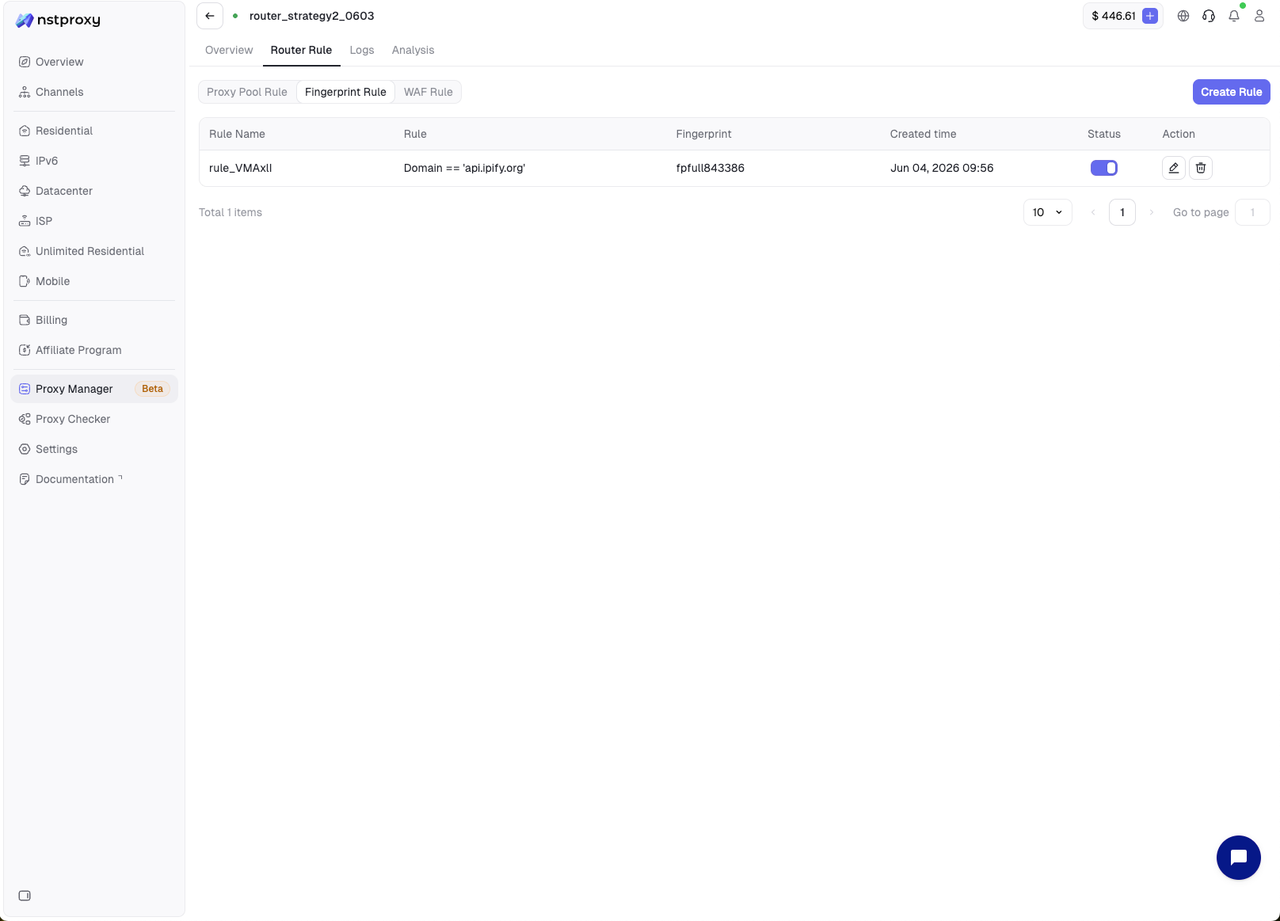
Router Rule is used to manage the rules of the current Router. This is for maintaining rules after the Router has been created.
Rule types:
- Proxy Pool Rule: Switch to a specified proxy pool when the condition matches.
- Fingerprint Rule: Apply a specified fingerprint pool when the condition matches.
- WAF Rule: Execute a WAF strategy when the condition matches.
Create rule fields:
- Rule Name: The rule name.
- If: The match field, e.g. ClientIP.
- Operator: The match relationship, e.g. equals.
- Input Value: The match value.
- Action: The action executed when matched.
- Status: Whether the rule is enabled.
Recommendations:
- Name rules to express business intent, e.g.
rule_clientip_to_us_pool. - When multiple rules coexist, avoid duplicate conditions or conflicting actions.
- After changing rules, observe in Logs whether they match as expected.
Logs

Logs is the core page for troubleshooting requests, where you can view aggregated request logs.
Log fields:
- Time: Request time.
- Connection ID: The ID of a single connection.
- Latency: Request latency.
- Method: Request method, e.g. GET, POST, OPTIONS.
- Domain: Target domain.
- Path: Request path.
- Supplier: The supplier node or service that actually handled the request.
- Status: Response status code, e.g. 200, 404.
Filtering capabilities:
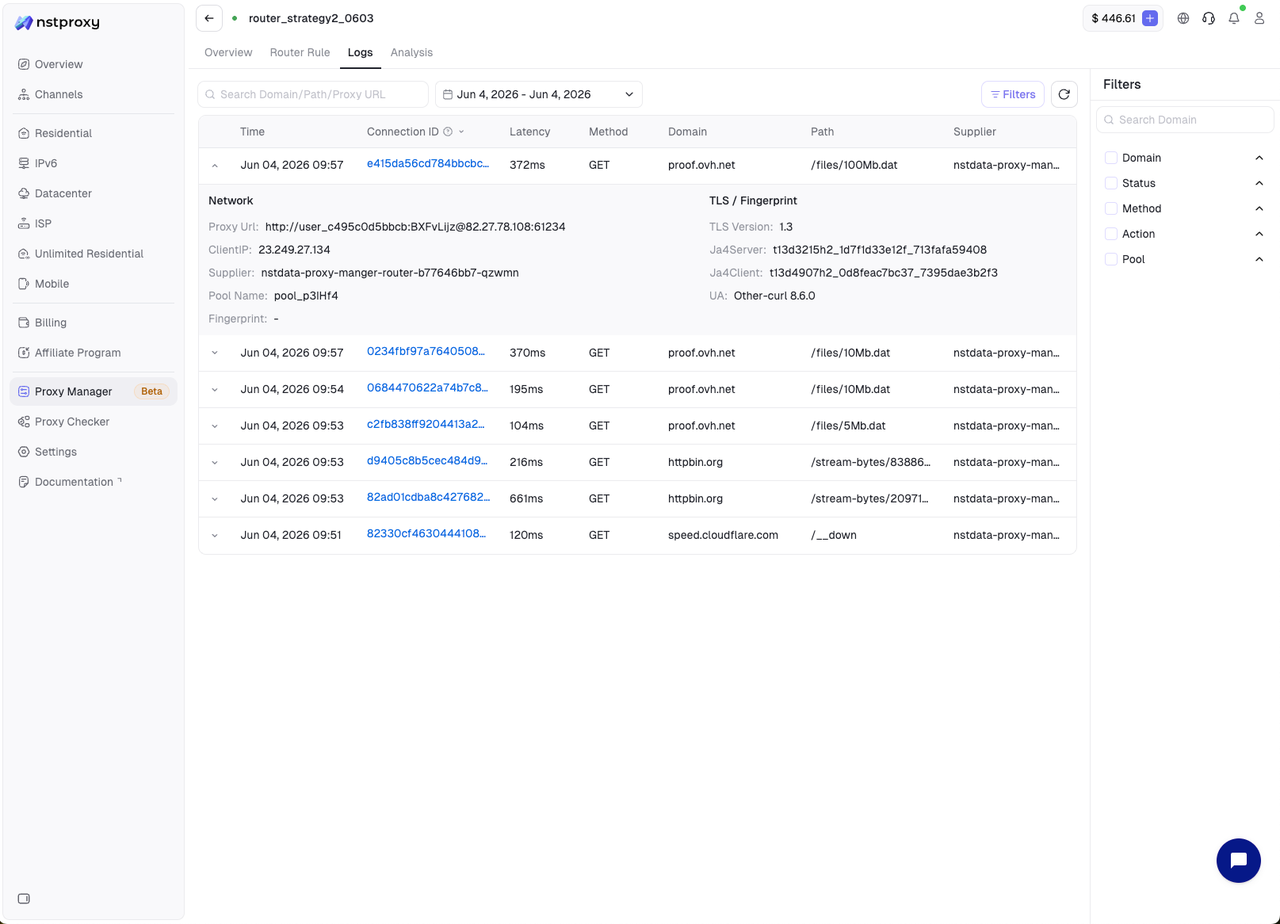
- Search Domain / Path / Proxy URL: Search by domain, path, or proxy URL.
- Date Range: Filter by date range.
- Domain: Filter by target domain.
- Status: Filter by status code.
- Method: Filter by request method.
- Action: Filter by rule action.
- Pool: Filter by proxy pool.
Connection ID and Task ID
Logs support two viewing granularities:
- Connection ID: Identifies a single connection. Suitable for troubleshooting a specific request or connection.
- Task ID: Aggregates multiple requests under the same task into one task dimension. Suitable when one business task makes multiple requests.
By default, logs are displayed by Connection ID. Each connection has an independent Connection ID.
When you set a Task ID in the Router URL, requests are aggregated by task, making it easy to view the set of requests under the same task.
Task ID requirements:
- The same business task should use a unique Task ID.
- Length of 10-20 characters.
- Only English letters and digits are supported: A-Z, a-z, 0-9.
- Spaces or special characters are not recommended.
How to use Task ID:
Append -task_ and the Task ID to the username part of the Router URL.
Example:
http://router_newtestpool-task_pmtest:[email protected]:24125Explanation:
router_newtestpool: The Router username.task_pmtest: The Task ID identifier.1JaitkwPunGB: The Router password.test-gw-us.proxymanager.top:24125: The Router gateway address and port.
Recommendations:
- Use Connection ID when troubleshooting a single request.
- Set a Task ID when troubleshooting batch scraping, batch checking, or automated tasks.
- The Task ID should be generated by the business system and remain unique per task.
- If the Task ID does not meet the rules, aggregation may not work properly.
Analysis
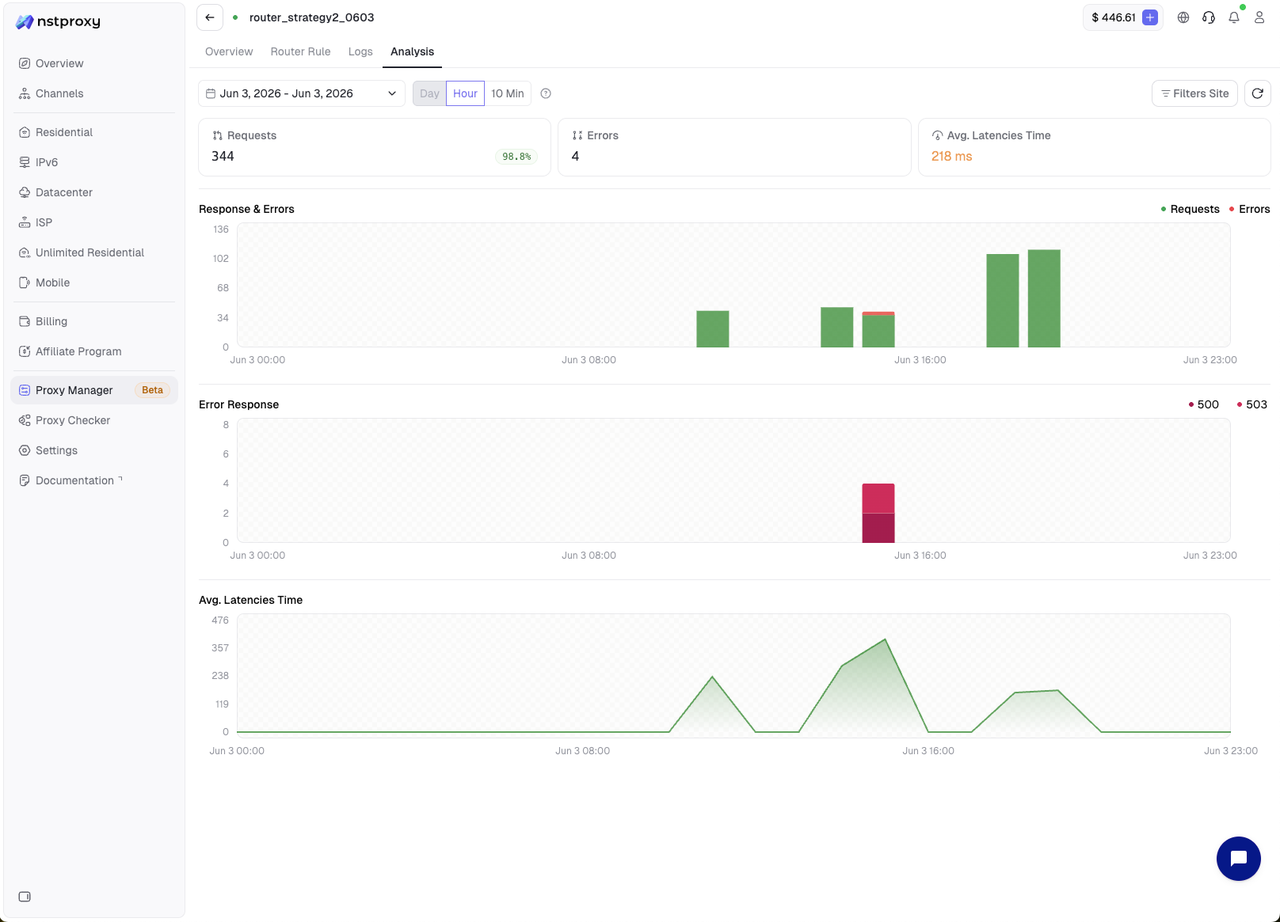
Analysis lets you observe Router request quality from a statistical perspective.
Key metrics:
- Requests: Number of requests.
- Errors: Number of error requests.
- Avg. Latencies Time: Average latency.
- Response & Errors: Request and error trends.
- Error Response: Distribution of error status codes.
- Avg. Latencies Time Chart: Average latency trend.
Recommendations:
- When many non-200 status codes appear in Logs, check Analysis to see whether errors cluster within a time period.
- When business reports slower requests, check the average latency trend.
- When the Router error rate keeps rising, check the default proxy pool or configure Monitoring for automatic switching.
5. Resources
Entry: Proxy Manager > Resources
Resources is used to maintain the underlying resources available to Routers, including Proxy Pools and Fingerprint Pools.
Proxy Pool
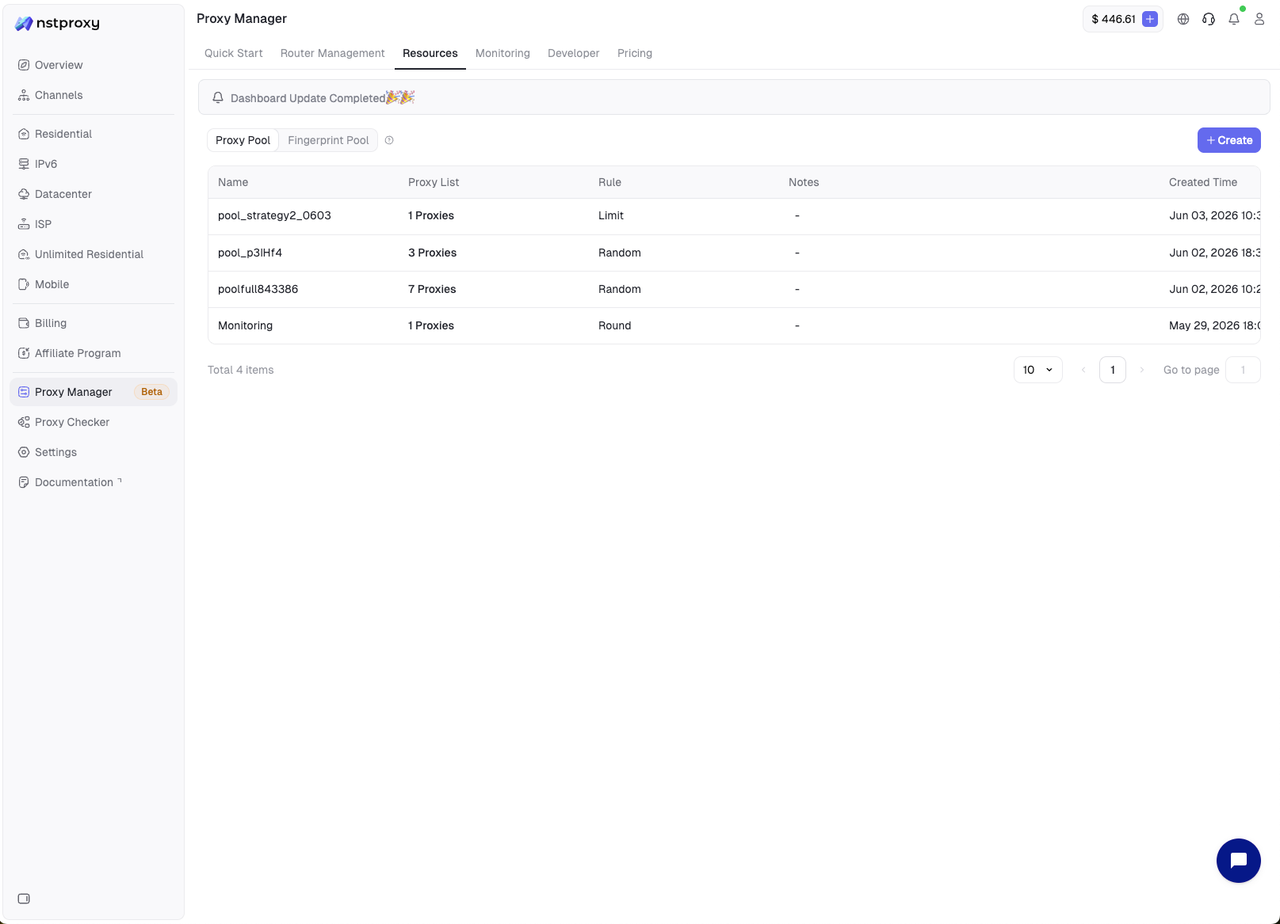
A Proxy Pool is a collection of outbound proxy resources, referenced by both the Router's default pool and Proxy Pool Rules.
List fields:
- Name: The proxy pool name.
- Proxy List: The number of proxies in the pool.
- Rule: Scheduling strategy, e.g. Random, Round, Limit.
- Notes: Notes.
- Created Time: Creation time.
- Status: Whether enabled.
- Operation: Edit, statistics, delete, etc.
Common operations:
- Create: Create a new proxy pool.
- Edit Pool: Modify the pool name, proxy list, strategy, or notes.
- Pool Statistics: View proxy pool usage statistics.
- Delete Pool: Delete the proxy pool.
- Status: Enable or disable the proxy pool.
Recommendations:
- Split proxy pools by business, region, quality tier, or supplier.
- Do not put test proxies and production proxies in the same pool.
- After modifying a proxy pool, observe the Router Overview and Logs.
Fingerprint Pool
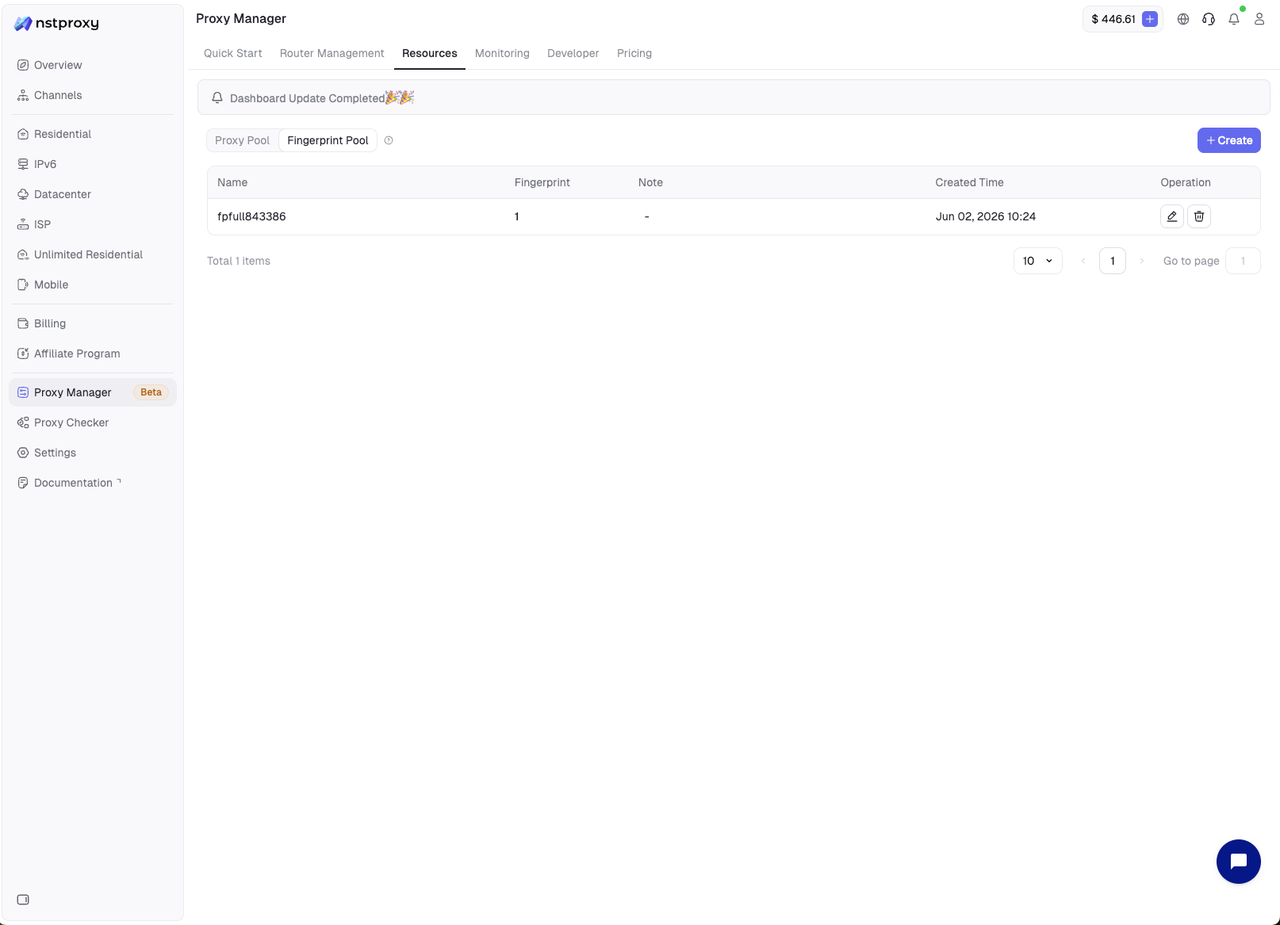
A Fingerprint Pool manages TLS fingerprint configurations, referenced by Routers or Fingerprint Rules.
List fields:
- Name: The fingerprint pool name.
- Fingerprint: The number of fingerprints.
- Note: Notes.
- Created Time: Creation time.
- Operation: Edit or delete.
Create Fingerprint Pool fields:
- Name: The fingerprint pool name.
- Fingerprint Profiles: The list of fingerprint configurations.
- Fingerprint Rules: Fingerprint scheduling rules.
- Notes: Optional notes.
6. Monitoring
Monitoring periodically checks the health of a Router or Proxy Pool and notifies or performs automatic handling when an anomaly occurs.
Router Monitoring
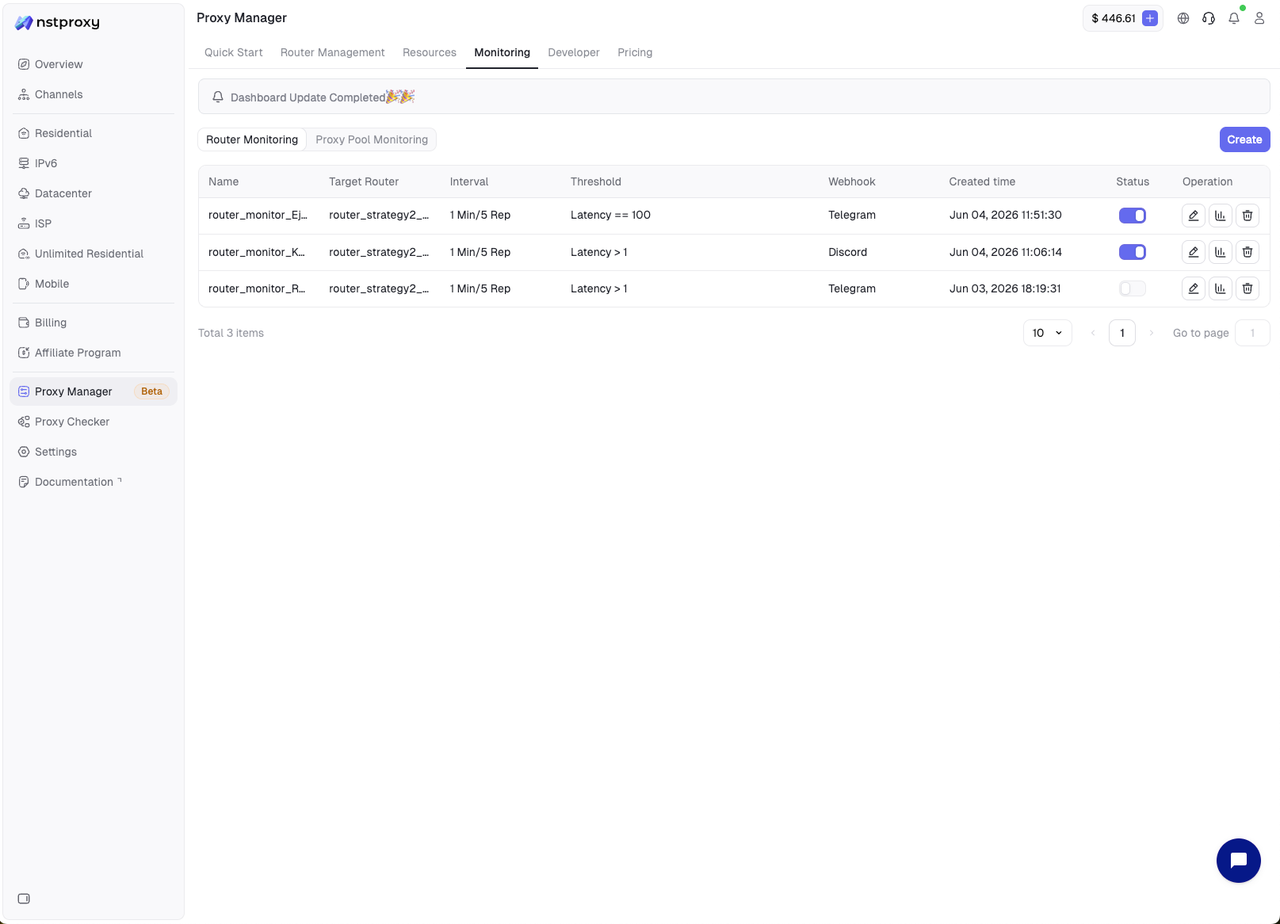
Router Monitoring checks how a Router accesses a specified target URL, and can automatically switch the proxy pool when an anomaly occurs.
Create fields:
- Rule Name: The monitoring rule name.
- Target Router: The Router being monitored.
- Request Method: GET, POST, OPTIONS.
- Check Frequency: Check frequency.
- Target URL: The check target address.
- Request: Request headers and body, in JSON format.
- Automatic Switching Rules: Automatic switching rules.
- Current Proxy Pool: The current proxy pool.
- Switch Proxy Pool: The proxy pool to switch to after an anomaly.
- Automatic Failback Policy: Automatic failback policy.
- Notify: Telegram or Discord notification.
- Activate: Whether to enable after creation.
Use cases:
- Check whether target site access is stable.
- Automatically switch the proxy pool when latency is too high or requests fail.
- Send anomalies to Telegram or Discord.
Proxy Pool Monitoring
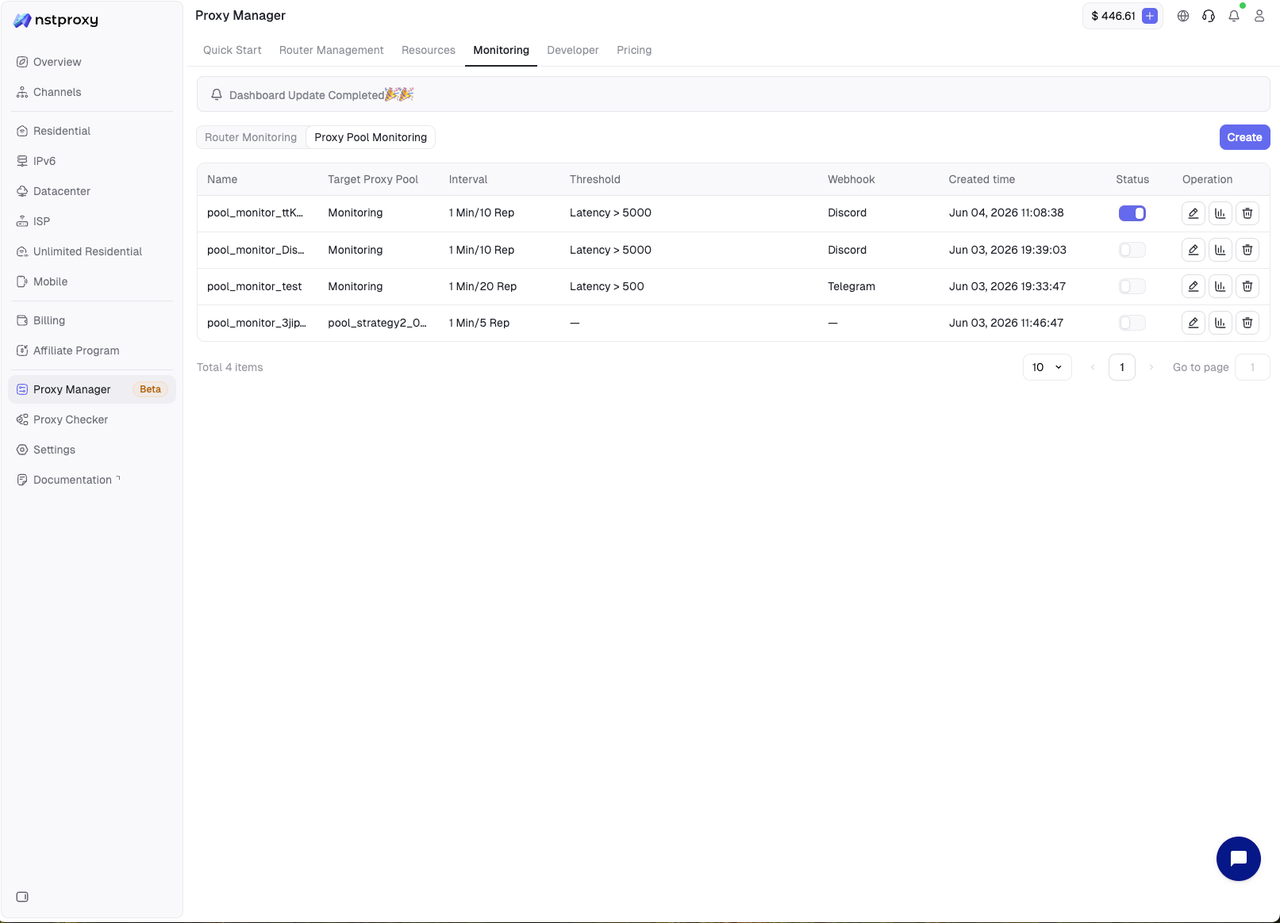
Proxy Pool Monitoring checks the health of proxy URLs within a proxy pool.
Create fields:
- Monitor Name: The monitor name.
- Target Proxy Pool: The proxy pool being monitored.
- Scan Method: Scan method, e.g. Random.
- Check Frequency: Check frequency.
- Scan Interval Summary: Summary of the check volume.
- Failed URL Handling: Handling rules for failed URLs.
- Notify: Telegram or Discord notification.
- Add Parallel Rule: Add a parallel handling rule.
- Activate: Mark as abnormal or disable the proxy.
Failure handling example:
- Condition: Latency greater than a specified number of milliseconds.
- Action: Mark as Abnormal.
- Meaning: Marked as abnormal while keeping the proxy available.
7. Developer
Entry: Proxy Manager > Developer
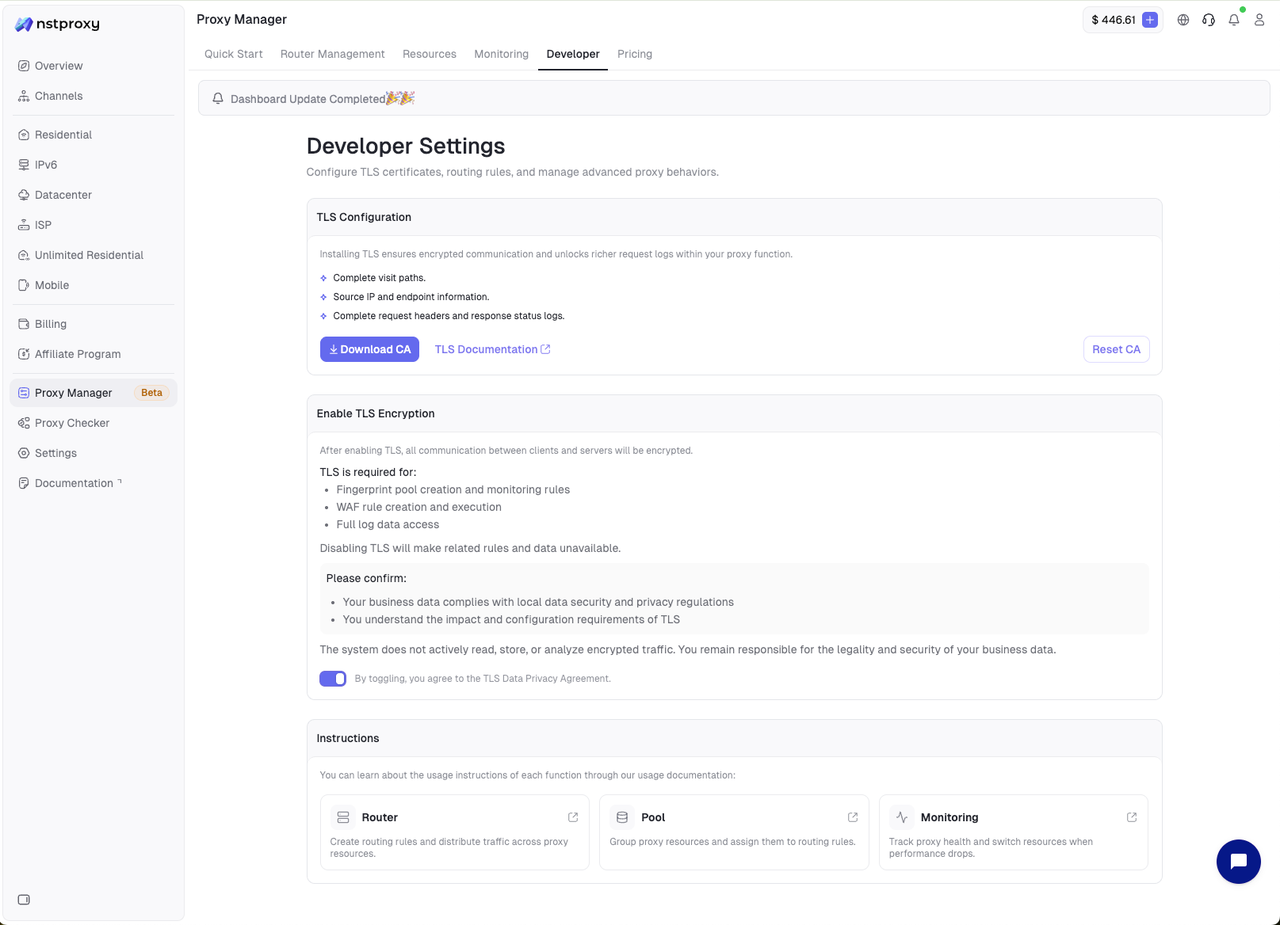
The Developer page is used to configure TLS certificates and learn about advanced capabilities.
Main operations:
- Download CA: Download the CA certificate.
- TLS Documentation: View the TLS configuration documentation.
- Reset CA: Reset the CA.
After enabling TLS, you can use or enhance:
- Full visit paths.
- Source IP and endpoint information.
- Full request headers and response status logs.
- Fingerprint Pool creation and monitoring rules.
- WAF Rule creation and execution.
- Full log data access.
Notes:
- Before using TLS, confirm that your business data complies with data security and privacy regulations.
- The system does not actively read, store, or analyze encrypted traffic, but you remain responsible for the legality and security of your business data.
- Enabling TLS means you understand and agree to the TLS Data Privacy Agreement.
8. Pricing
Entry: Proxy Manager > Pricing
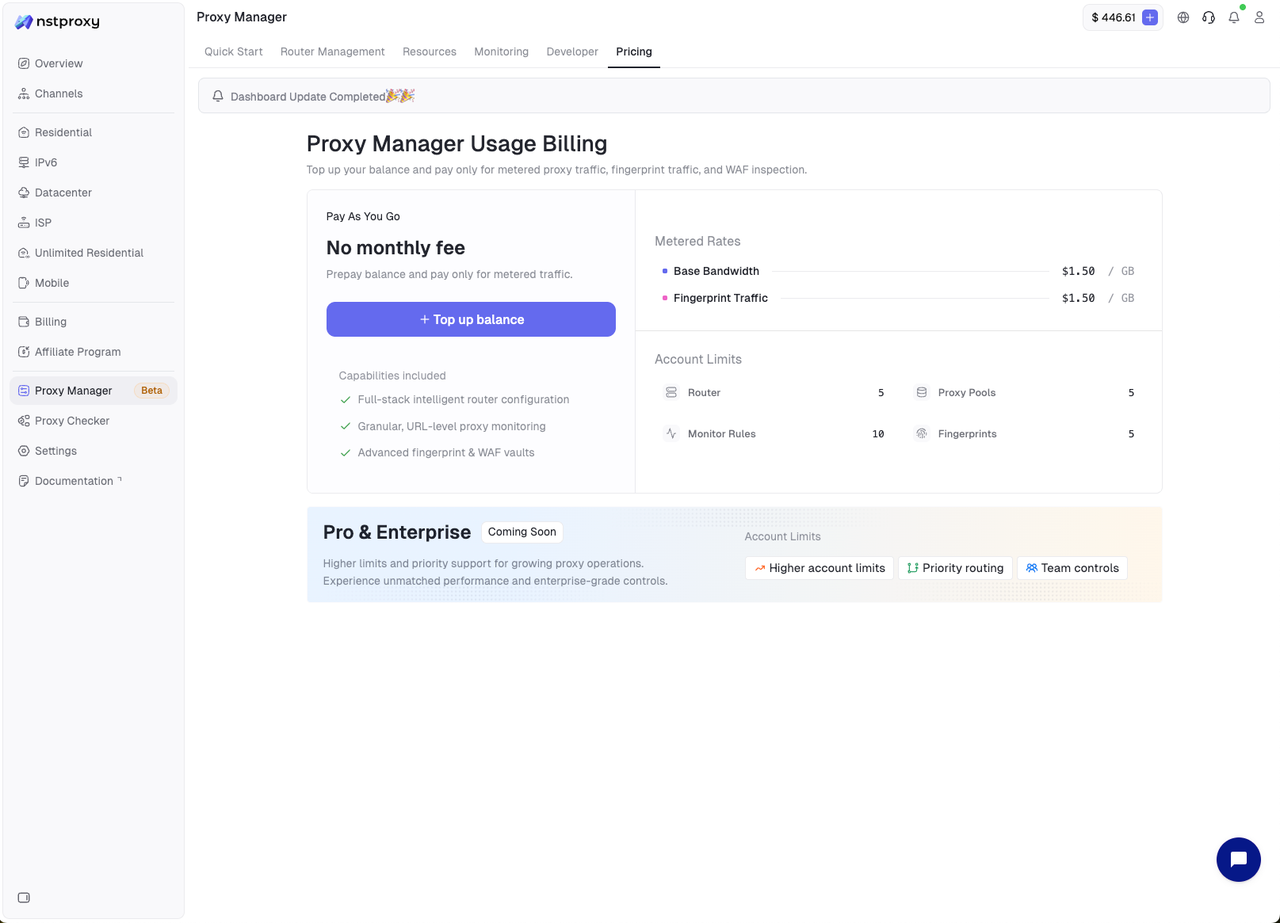
This page shows the billing model, balance, and account limits of Proxy Manager.
During the Proxy Manager testing phase, pay-as-you-go is offered, with a subscription model to follow.
Billing items:
- Base Bandwidth: Base proxy traffic.
- Fingerprint Traffic: Fingerprint-related traffic.
- Account Limits: Creation limits for Routers, proxy pools, monitoring rules, and fingerprint pools.
Recommendations:
- Confirm your account balance is sufficient before creating a production Router.
- After enabling Fingerprint, WAF, or high-frequency monitoring, watch for additional metered consumption.
- Charges are deducted in real time; you can view bills in Credits History.
9. Common Scenarios
Scenario 1: Create a basic proxy entry
- Go to Quick Start.
- Fill in Router Name and Password.
- Choose Create New Proxy Pool.
- Fill in the Proxy Pool Name.
- Paste proxy URLs into the Proxy List.
- Click Check to test the proxies.
- Keep TLS Off.
- Click Create Router.
- Copy the Router URL from Router Management.
Scenario 2: View aggregated logs by task
- Generate a unique Task ID for each business task.
- Ensure the Task ID is 10-20 alphanumeric characters.
- Append the Task ID to the username part of the Router URL.
- Send requests using the Router URL with the Task ID.
- Go to Router Detail > Logs.
- Switch to the Task ID aggregation view to see requests under the same task.
Example:
http://router_newtestpool-task_pmtest:[email protected]:24125Scenario 3: Troubleshoot failed requests
- Search the target Domain or Path in Router Detail > Logs.
- Check whether Status is 200.
- Check whether Latency is abnormal.
- Use the Connection ID to locate a single request.
- If using a Task ID, switch to the task aggregation view to see whether the whole task failed.
- Check Analysis to see whether errors cluster within a time period.
- Check whether the Router's default pool and Router Rules are configured correctly.
Scenario 4: Automatically switch an abnormal proxy pool
- Prepare a primary proxy pool and a backup proxy pool.
- Go to Monitoring > Router Monitoring.
- Create a Router Monitor Rule.
- Fill in Target Router and Target URL.
- Set the check frequency.
- Configure the Automatic Switching Rules.
- Select the Current Proxy Pool and Switch Proxy Pool.
- Optionally enable the Automatic Failback Policy.
- Configure Telegram or Discord notifications.
- Enable Activate and create.
10. Usage Notes
- Before deleting a Router, Proxy Pool, or Fingerprint Pool, confirm no production business or rule is referencing it.
- After changing the default proxy pool, new requests use the new configuration; historical logs do not change.
- When there are too many routing rules, keep naming clear and clean up invalid rules regularly.
- The Task ID should be generated by the business system and kept unique; avoid reusing the same Task ID across multiple tasks.
- When troubleshooting, use Logs to locate a single request, then use Analysis to judge the overall trend.